Review Form
Review form results
|
|
When SMEs are assigned to review a form, they preview the delivery of that form using the Exam Preview application. Once "End Exam" is clicked, exam results from the preview are generated and sent to the Review form page for project managers to review.
Review form results
- On the Review form page, click the Reviewers tab.
- A list of generated results from started and completed "Review form" assignments is displayed. Click the desired Result ID to open the result information.
- The Result ID page displays information on two tabs:
- Results: Displays a summary of the completed exam form with expandable sections including details at the test, section, item, and response levels (item ID, item type, response type, response, key, etc.)
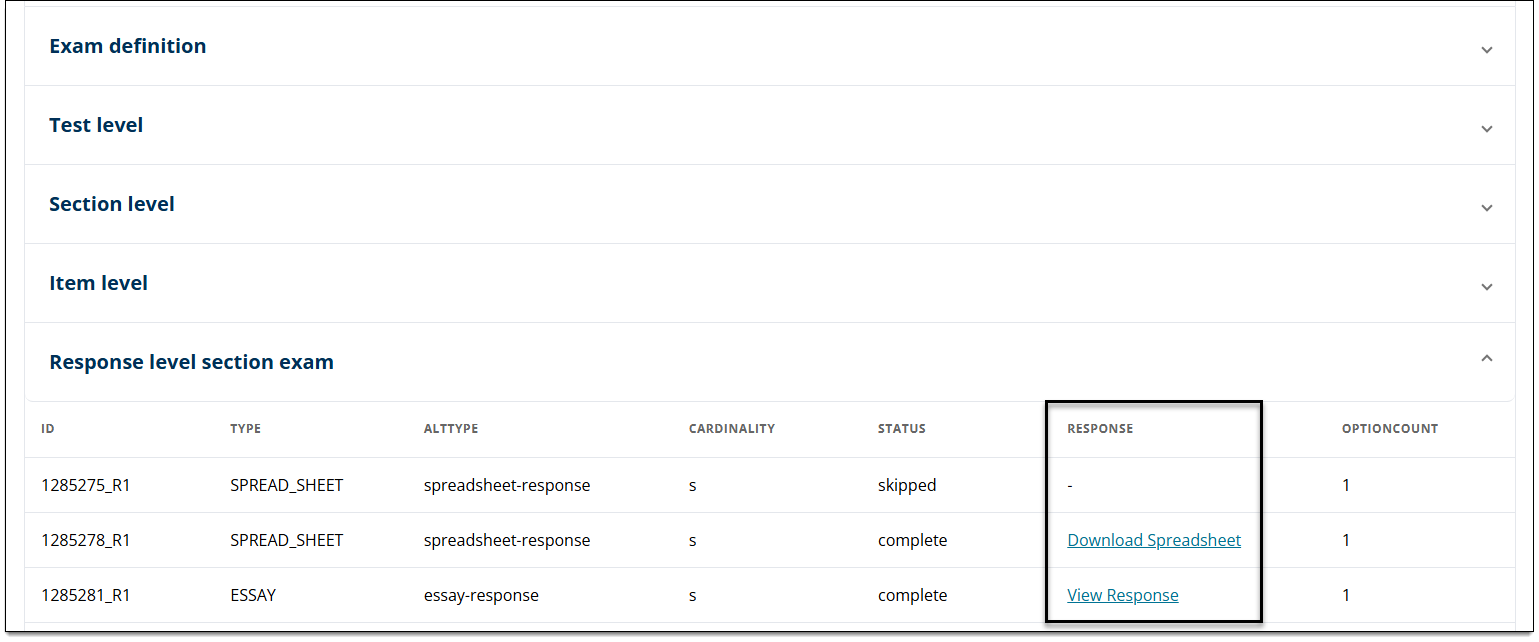
 In the Response column of the Response level section, you can access complete Spreadsheet and Essay responses. For Spreadsheet items, click Download Spreadsheet to download the entire spreadsheet response provided for that item. For Essay items, click View Response to open the complete response provided for that item in a new browser tab.
- User interaction history: Shows a record of the user's interactions during the form review with the date/time of the interaction (response selected, button pressed, exam resumed, etc.)
- Results: Displays a summary of the completed exam form with expandable sections including details at the test, section, item, and response levels (item ID, item type, response type, response, key, etc.)
Export form results
- On the Review form page, click Export results near the upper-right corner of the page.
- The form results are downloaded as a ZIP file according to your browser settings; typically sent to your local Downloads folder.
- The ZIP file name will include the Result ID.
- The ZIP file will contain separate files for results and user interaction history.
Delete form results
|
|

- On the Review form page, click the Reviewers tab.
- A list of generated results from completed form review assignments is displayed. Click Delete for the desired result.
- A confirmation modal is displayed. Click Delete to proceed.
Pearson Proprietary and Confidential